

Here is a situation most Mac users have been in at least once, probably more times than they would like to admit. You copy something important. A number, a link, a chunk of text you needed. Then, before you paste it, something else demands your attention. You copy a second thing. And just like that, the first item is gone. Vanished. The clipboard only ever holds one thing, and it just got replaced.
It is one of those small frustrations that feels trivial the first time it happens, then quietly infuriating the hundredth time.
If you use your Mac for anything more demanding than casual browsing, if you are writing papers, running calculations, pulling together research, or managing projects, the native clipboard will eventually slow you down. The good news is that once you understand how it actually works, and what your options are, you can fix this in about ten minutes.
What Is the Mac Clipboard, Really?
Most people have a vague sense of what the clipboard does, but not many think about what it actually is. At its core, it is a background process, quiet, invisible, requiring almost no system resources, that holds whatever you last copied with Command + C. That is it. One item. Whatever you copied most recently. Anything before that is simply gone.
You can actually peek at the clipboard if you want to. Open Finder, click “Edit” in the top menu bar, and choose “Show Clipboard.” It will show you the last thing you copied, text, an image, a file name, whatever. Just that one thing. No history, no list, no option to scroll back through anything you copied earlier in the day.
Apple did add something called the Universal Clipboard back in macOS Sierra, which is genuinely clever. If your iPhone and Mac are on the same Wi-Fi network, logged into the same iCloud account, and have Bluetooth switched on, you can copy on your phone and paste on your Mac (or vice versa). That has real practical value. But it still does not solve the fundamental problem of only holding one item at a time.
There is also a lesser-known trick worth knowing. Apple quietly built a secondary clipboard into macOS that almost nobody uses, because almost nobody knows it exists. Select some text and press Control + K that cuts it to a completely separate clipboard. Then press Control + Y to paste it wherever you need it. Because this is separate from the main clipboard, it does not wipe out whatever you copied with Command + C. Two clipboards instead of one. It is not a complete solution, but it is a handy thing to have up your sleeve.
Why This Matters More Than It Seems
Think about what a typical working session actually looks like. Say you are a student working through a problem set, pulling up results from an online scientific calculator, and trying to get those numbers into a document along with some cited sources, a snippet from a reading, and a line from your own notes. That is four different things you need to copy and paste. Under macOS defaults, you can only hold one of them at a time, which means you are constantly flipping between windows, re-copying things you already had, and losing your train of thought every few minutes.
It sounds minor. It is not. Every time you have to go back and re-copy something, you break concentration. Every unnecessary window switch adds a small tax on your mental energy. Over a long work session, these micro-interruptions compound into something real, you get less done, you make more small mistakes, and you feel more drained at the end than the work itself should have made you.
That is the actual cost of ignoring the clipboard problem. Not the seconds lost per copy-paste cycle, but the cognitive load of managing it all manually without any tools to help.
To truly understand how to view and manage your clipboard history on a Mac is to realize that the system was never designed for the way most of us actually work. And once you know that, you can stop working around it and start fixing it.
Third-Party Clipboard Managers: The Actual Fix
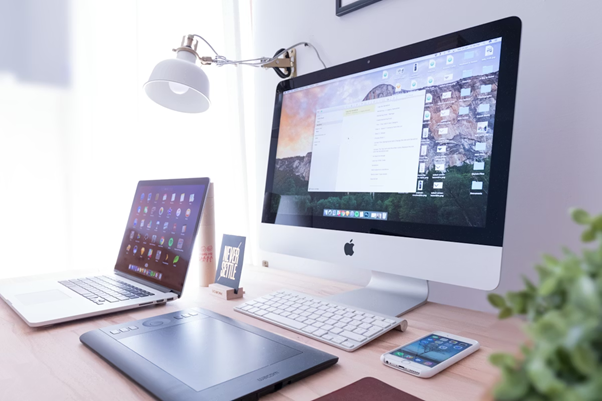
The solution that most people land on eventually is a clipboard manager, a third-party app that replaces the native single-item clipboard with a persistent, searchable history of everything you have copied. Once you start using one, going back feels impossible.
A few worth knowing about:
Paste is probably the most polished option out there. It keeps a full, searchable history of your copied items in a clean, well-designed panel that slides in from the bottom of your screen. You can organize things into pinboards, collections of snippets you reuse regularly, like email templates, formula structures, or standard phrases. The visual layout makes it easy to scan through and grab what you need quickly.
Unclutter is a little broader in scope. It is less of a dedicated clipboard manager and more of a lightweight productivity panel, it also includes a notes area and a temporary file shelf for things you are working with but do not want to commit to a folder yet. The whole thing lives just beyond the top edge of your screen and pulls down when you hover near the menu bar.
Rocket Typist is best if your real problem is repetitive typing rather than clipboard overflow. You build a library of frequently used text snippets and assign abbreviations to each one, type the abbreviation and the full phrase expands automatically. Less of a clipboard tool, more of a text automation tool, but the two needs often overlap.
Any of these integrates cleanly with macOS. None of them require any technical setup. You install the app, and your clipboard suddenly has memory. That is more or less all there is to it.
When Your Clipboard Just Stops Working
Copy and paste failing entirely is more common than people expect, and it is usually fixable in under two minutes.
The clipboard is managed by a background process in macOS called pboard. When that process freezes or crashes, your clipboard goes with it. The fix is to force-quit it and let macOS restart it automatically. Open Activity Monitor, you can find it in Applications > Utilities, search for “pboard” in the search bar, and quit the process. macOS spins it back up immediately, and your clipboard should be functional again.
If that does not solve it, the issue might actually be with your keyboard rather than the clipboard. Try copying text through the Edit menu instead of Command + C, and then pasting through the menu as well. If that works fine, the keyboard itself is the likely culprit, and a restart will usually clear it up.
Other Habits That Actually Move the Needle
Clipboard management is a good start, but a few other small changes can noticeably improve how smoothly your day runs on a Mac.
Get deliberate about keyboard shortcuts. Most people know Command + C and Command + V and leave it at that. But macOS is full of shortcuts that save real time, the Control + K secondary clipboard trick, for example, or Command + Tab for cycling through open apps without reaching for the mouse. The more of these become automatic, the less cognitive energy you spend on navigation.
Deal with tab sprawl. Browser tabs are a productivity trap disguised as organization. Keeping forty tabs open does not make you more prepared, it makes your machine slower and your focus harder to maintain. If you are keeping a tab open because you might need something from it later, copy the relevant information or URL into your clipboard manager or a quick note and close the tab. Your browser, your RAM, and your attention span will all thank you.
Take smarter breaks. This one gets overlooked. When you step away from focused work, what you do in that break matters. Scrolling social media often makes it harder to refocus, not easier, it is cognitively stimulating in a way that bleeds into your work headspace. Something more bounded and mentally absorbing tends to work better. A lot of people find thatfun word searches hit a good sweet spot, they engage your brain just enough to give it a genuine rest from the main task, without pulling you into the endless scroll.
Keep your system clean. A Mac that is running well just feels different to use. Bloated caches, outdated files, and background processes that should not be running can slow things down in ways that are hard to pinpoint but easy to feel. A tool like CleanMyMac makes this kind of maintenance straightforward, and doing it regularly keeps your machine from gradually getting slower without any obvious reason.
The Part Nobody Talks About
Here is the honest version of why any of this matters.
It is not really about the clipboard. The clipboard is just one example. The point is that most people use their Mac every day without ever stopping to ask whether they are using it well. The defaults that Apple ships are fine, they are designed to work for a wide range of users without requiring any setup. But “fine for everyone” is rarely “great for the way you specifically work.”
Spending an hour learning your tools properly, understanding what the clipboard actually does, trying a clipboard manager, building better habits around focus and breaks, pays returns for years. Not in a dramatic, revolutionary way. Just in the quiet accumulation of fewer frustrations, less time lost, and less mental energy spent managing the mechanics of your workflow instead of doing actual work.
To Wrap Up
The Mac clipboard is genuinely useful, and genuinely limited. Understanding both of those things, what it can do and where it falls short, puts you in a much better position to work around its constraints, whether that means using the hidden secondary clipboard, installing a manager like Paste or Unclutter, or just knowing what to do when copy and paste stops responding.
None of this is complicated. It just requires taking a few minutes to learn the tool you use every single day. And once you do, you will almost certainly wonder why you waited this long.